
These screenshots use sample content in a preview version of Idle. Your app may look different. Select an image to see the full screen.
Report a user
If you need to report a person, report the message or meet connected to that account. Idle receives the account information attached to the report.
- Open Idle.
- Go to Messages and open the conversation with the person.
- Press and hold a message from the other person.
- Tap Report message.
- Choose the reason that best matches the issue.
- Add optional Extra context if it helps Idle understand what happened.
- Tap Submit report.
Report a meet
- Open the meet posted by another account in Idle.
- Tap the flag button on the meet page.
- Choose the reason that best matches the issue.
- Add optional Extra context if it helps explain the problem.
- Tap Submit report.
Report a Pulse post
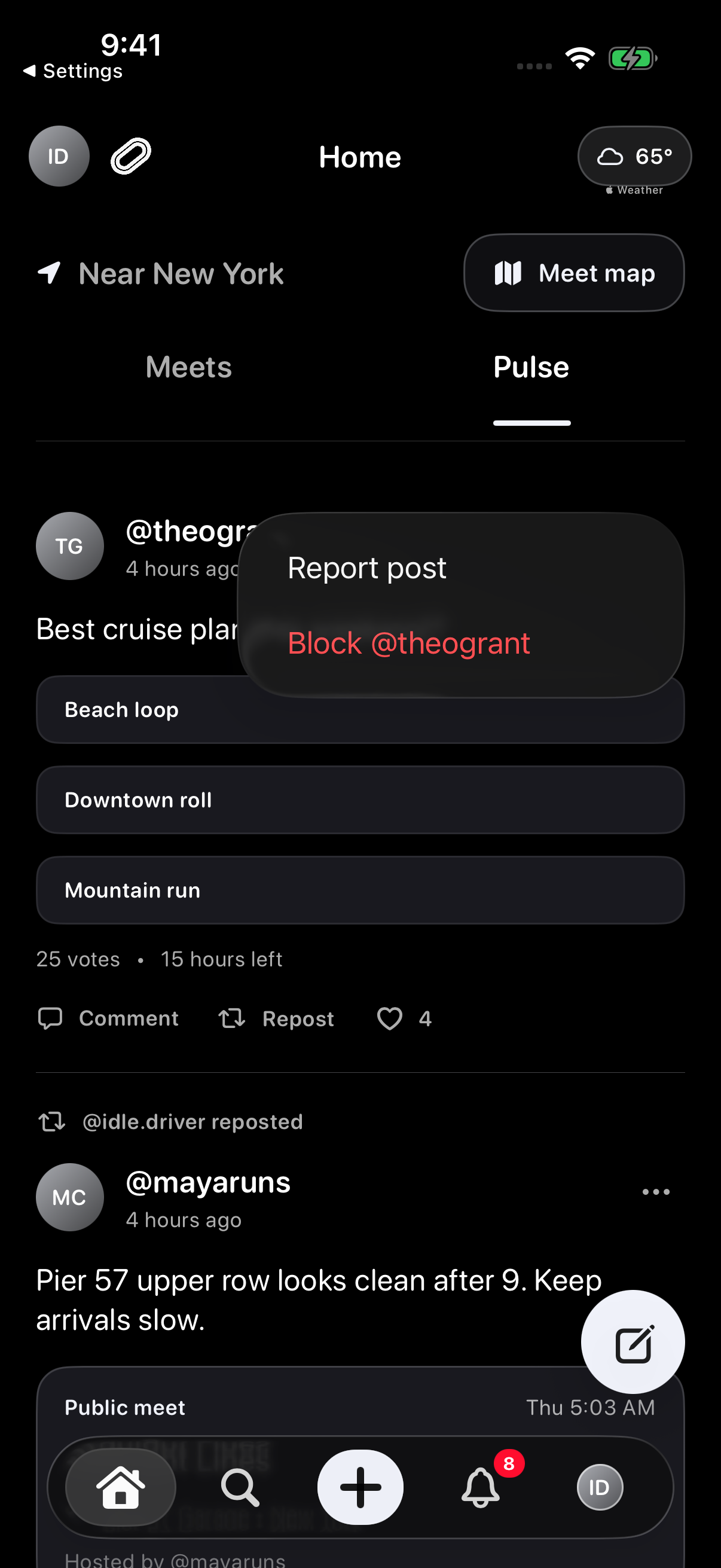
- Open Home > Pulse and find the post.
- Open the post’s More menu, shown as an ellipsis.
- Choose Report post to open the report form.
Choose a reason and review the report
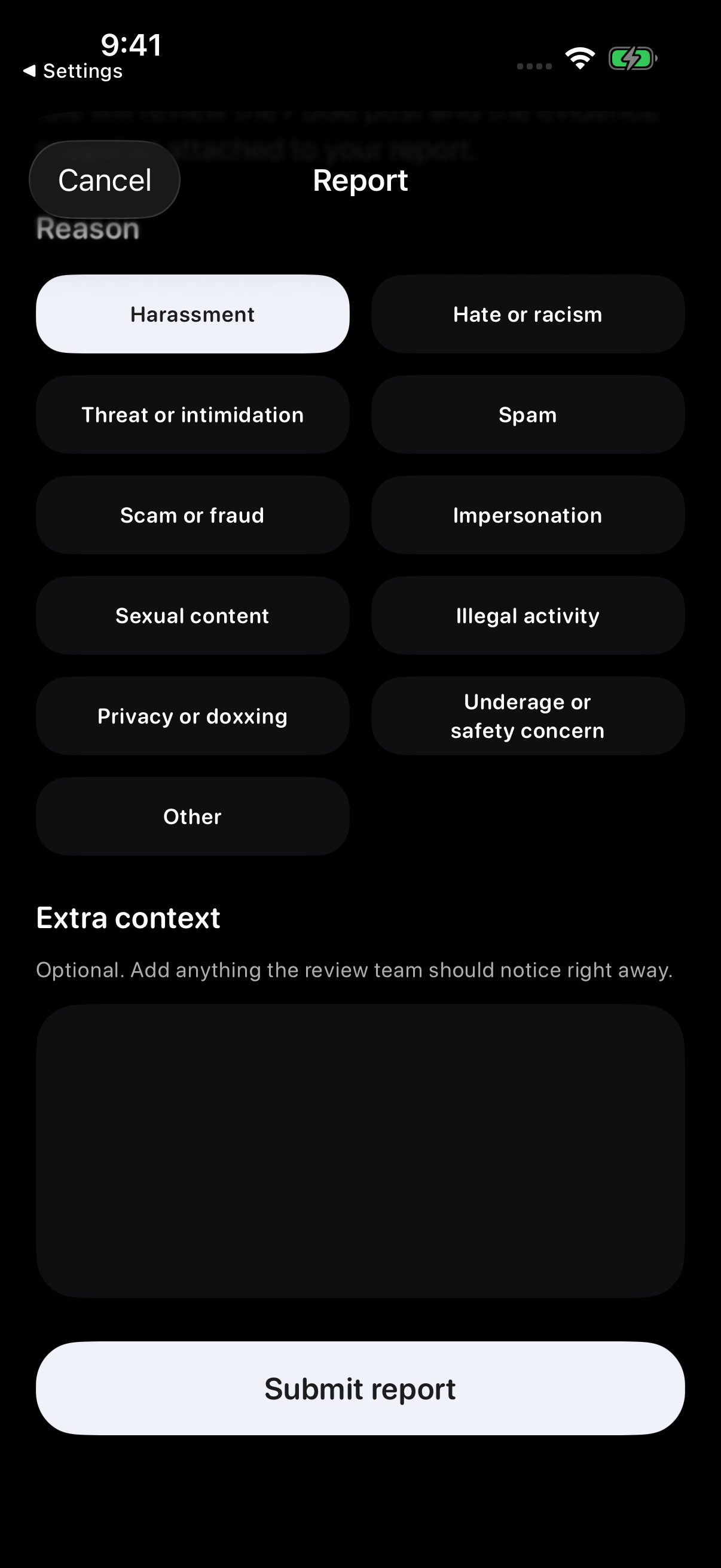
- Choose the reason that best matches the issue.
- Add optional Extra context if it helps explain what happened.
- Review the details before choosing Submit report.
Choose the reason that fits your report, add any details that help explain what happened, then review the report before submitting.
Report other content
To report a Pulse comment, open its menu and choose Report comment. To report a group chat message, open the group conversation, press and hold a message from another member, then tap Report message. Choose a reason, add useful context and tap Submit report. The illustrated flow above is for a Pulse post.
For a concern about a group itself or a profile without reportable content, email support@idlemeets.com with the group name or account handle and what happened.
Block a user
- Open the person's profile or your message thread with them.
- Tap the safety actions button, shown as an ellipsis.
- Tap Block account.
- Confirm the block.
Blocking can remove the account from your connections, hide the thread from your inbox where possible, and limit that account from reaching you through Idle.
Unblock someone
Open Settings > Privacy & Safety > Blocked Accounts, then tap Unblock beside the account.
What Idle reviews
- A user or profileHarassment, impersonation, spam, scams, or other abusive behavior.
- A meetUnsafe details, fake information, misleading locations, or rules that put people at risk.
- A messageThreats, repeated unwanted contact, scam links, or private information shared without permission.
- A groupMisleading group details, spam, abusive activity, or unsafe coordination.
- Pulse contentHarassment, spam, scams, unsafe content, misleading meet posts, or privacy violations.
If you cannot report in the app
Email support@idlemeets.com with enough detail for support to find and review the issue.
- What happenedA short description of the issue.
- Where it happenedThe username, meet name, group name, message thread, or screen involved.
- When it happenedThe date and approximate time if you know it.
- ScreenshotsHelpful screenshots are welcome, but avoid sending private information unless it is needed for the report.
Immediate danger
If someone may be in immediate danger, contact local emergency services first. Idle support is not an emergency response service.