
These screenshots use sample content in a preview version of Idle. Your app may look different. Select an image to see the full screen.
Open Host Tools
From Home, tap your avatar to open the sidebar, then choose Host Tools. The Hosted count on a profile leads to hosted meets; it is a different entry.
In Command, review Needs attention and Next up. Select Manage meet for the meet you want to work on.
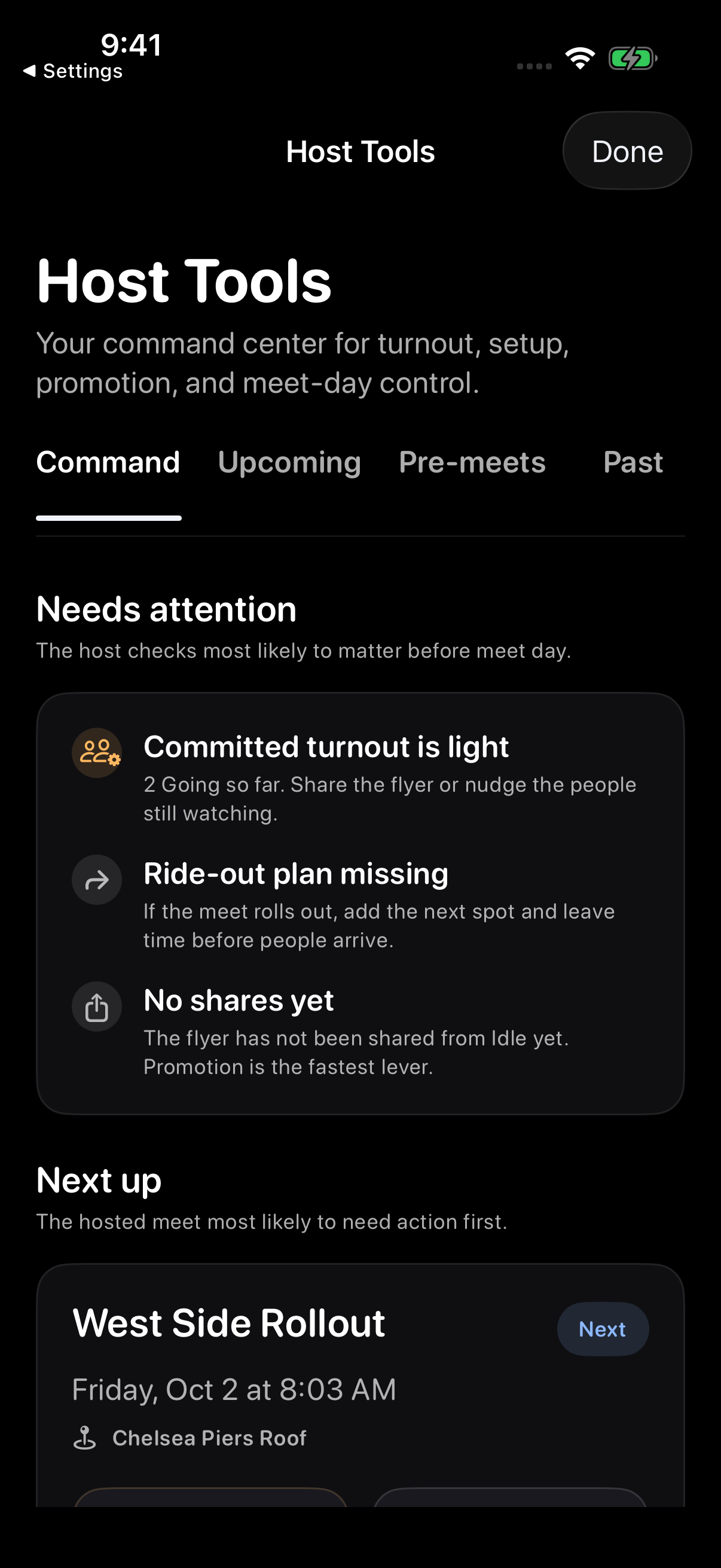
Check attendance responses
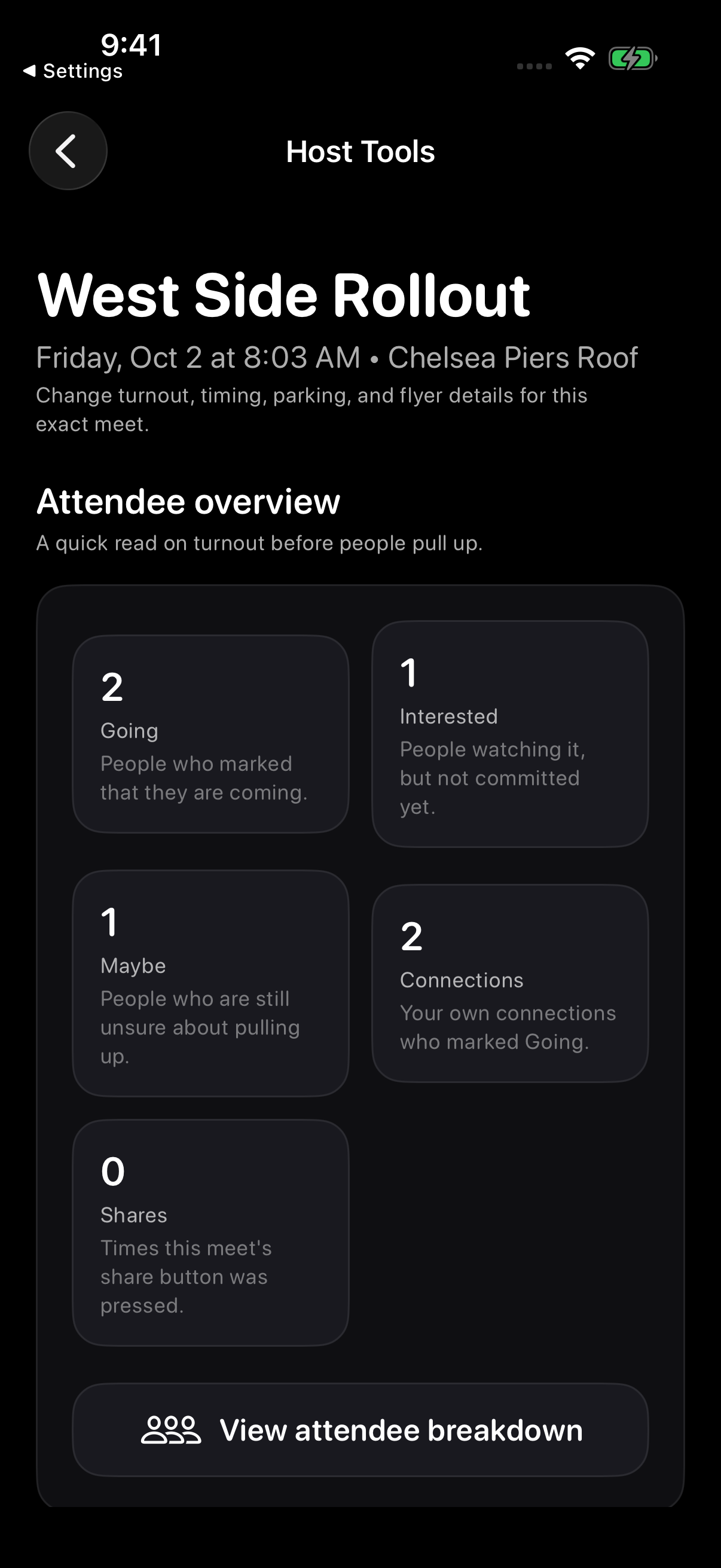
The selected meet’s Attendee overview shows Going, Interested, Maybe, Connections, and Shares.
Use these counts to understand the responses to your meet. Choose View attendee breakdown to review the selected meet.
Find quick updates and meet-day controls
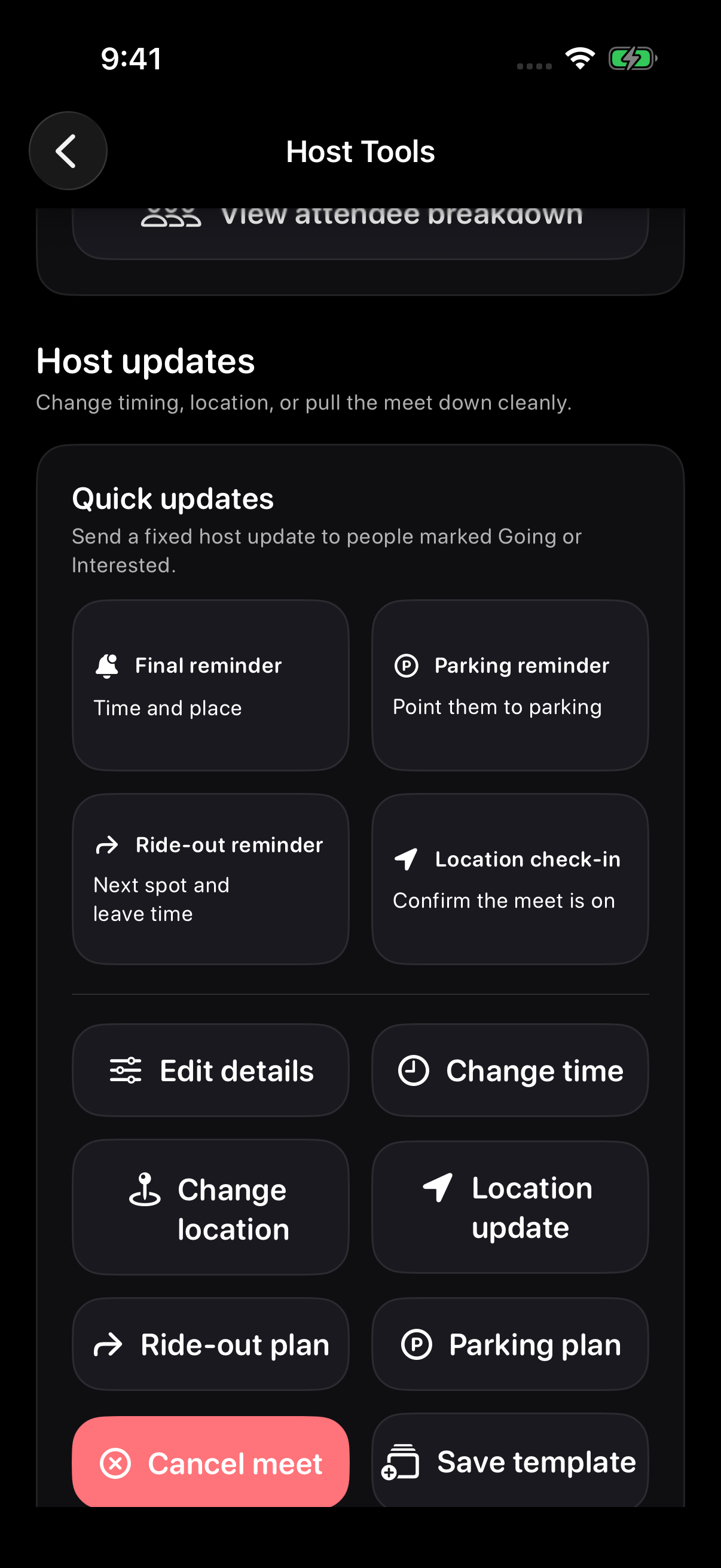
Quick updates contains fixed messages for Final reminder, Parking reminder, Ride-out reminder, and Location check-in.
If Ride-out reminder says Add ride-out first, add the plan before using the reminder. You can also find Edit details, time and location controls, Ride-out plan and Parking plan here.
Choose an available quick update, then review its message and audience. Tap Send now to send it, or Cancel to return without sending. Parking and ride-out reminders become available after you add the corresponding plan.
Review edits before saving
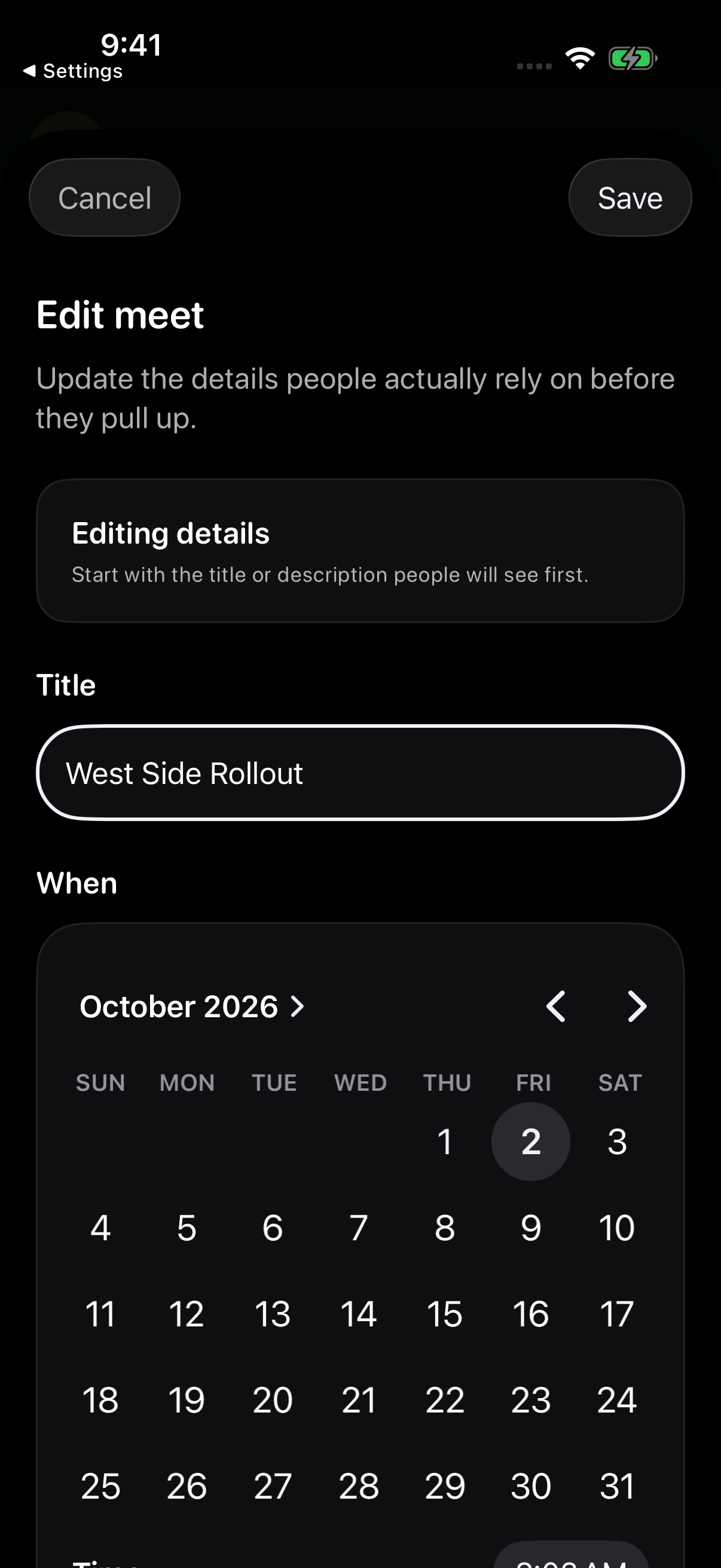
Edit details opens an Edit meet form. Review the title and schedule, then tap Save when the changes are ready. Use Cancel to leave without applying them.
For timing, location, parking, or ride-out changes, start with the matching control for the selected meet.
Save or share the flyer
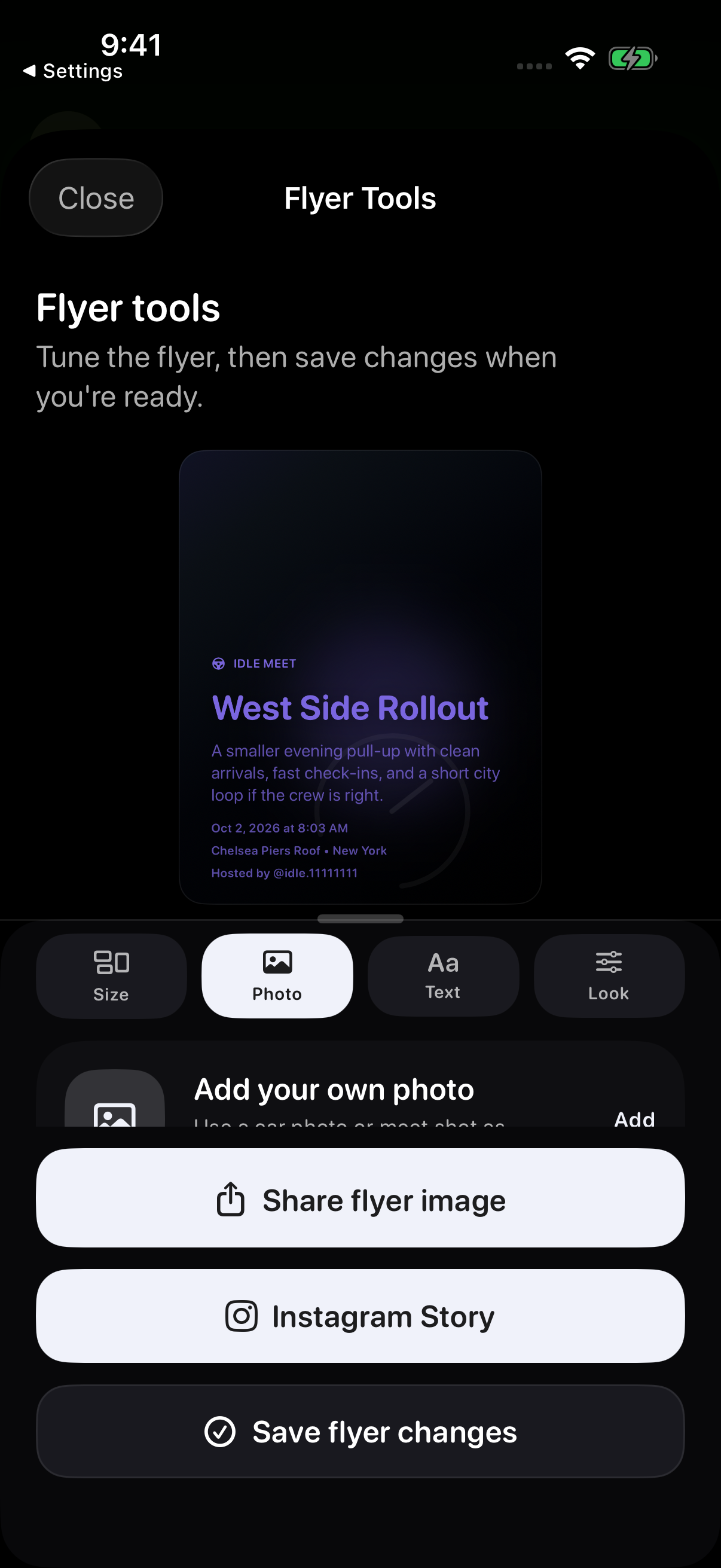
Choose Open flyer tools to enter the full Flyer Studio editor. In Flyer Tools, use Size, Photo, Text and Look to edit the design. Tap Save flyer changes when the hosted meet should use your edits.
Share flyer image and Instagram Story are separate actions. See Edit and share meet flyers for the format and styling walkthrough.
Look back at past meets
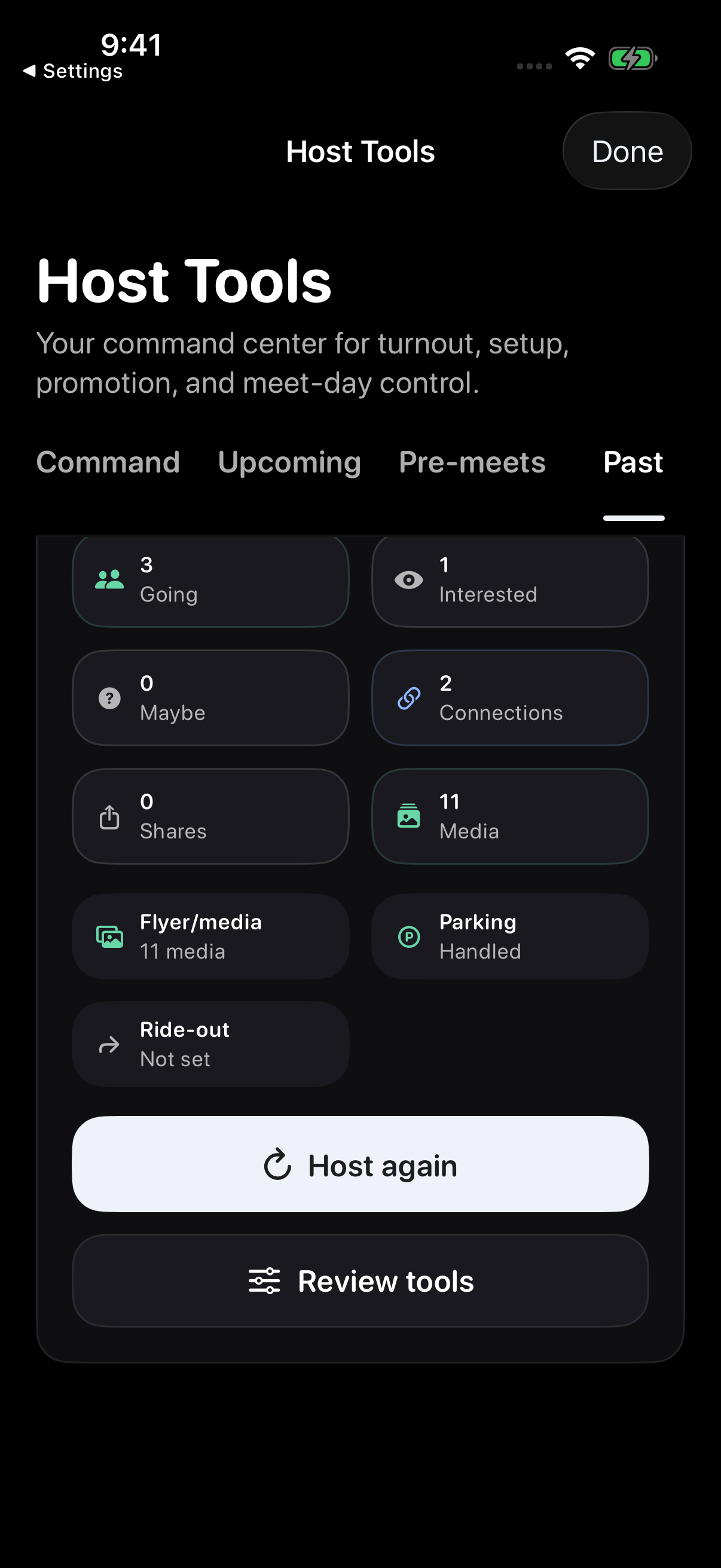
The Past tab provides attendance and other details from earlier meets. It includes Host again and Review tools entries.
For reusable setups, see Meet templates. Always review the future date and every reused detail before publishing another meet.
Add a ride-out reminder
Open Ride-out plan, enter the next stop, leave time and note, then save. Return to Host updates to find the Ride-out reminder.
Check Ride-out plans for the details attendees see. For flyer edits, follow Edit and share meet flyers.
What to expect
Host Tools actions are for the signed-in account that manages the Idle post. Public host credit does not automatically transfer editing, cancellation, or Host Tools permissions. See Host credit.
Save your flyer edits
Previewing or sharing a flyer does not update the hosted meet. Tap Save flyer changes when you want to keep your edits.
Change or remove an end time
In the matching app version, open the selected meet's Change time or Edit details controls. Tap Add end time for a start-only meet, or use Ends to change an existing end. Choose the following date if the meet ends after midnight. Keep the end after the start, or choose Remove end time for a start-only meet.
Review both times after changing the start: moving it past the previous end can adjust the end automatically. Save and reopen the meet to review the result; Cancel leaves the previous timing unchanged.
Troubleshooting
In the updated app, saving a changed location with a real account checks its address again. A complete match can continue without an extra choice; ambiguous matches may need an address selection, and unrecognized addresses may offer explicit pin placement. Unchanged-location edits retain the existing pin. See address and pin guidance before saving.
- Host Tools missingConfirm you are signed into the account that posted or manages the meet.
- End time will not saveConfirm the end time is after the start time, or remove the end time if the meet should only show a start time.
- Update reached fewer peopleSome attendees may not be marked Going or Interested, or may not allow host updates.
- Host again shows old detailsChoose a fresh future date before posting the new meet.
Contact support
Email support@idlemeets.com with the meet title, host account, what you tapped, and the exact message shown.